

Download
1
Get the latest build
Head to runwita.com and click the download button. You’ll get a
.dmg file named something like Runwita-1.1.10-arm64.dmg. The version number changes; the rest stays the same.TODO: screenshot of runwita.com download CTA
2
Open the disk image
Double-click the
.dmg. A Finder window opens with the Runwita app icon and a shortcut to your Applications folder.3
Drag to Applications
Drag the Runwita icon onto the Applications shortcut. macOS copies the app over. You can eject the disk image after.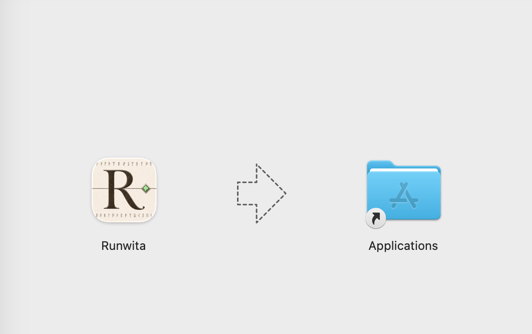
4
Launch
Open Launchpad or your Applications folder and double-click Runwita. The first launch can take a few seconds while macOS verifies the app.
Where Runwita keeps its data
Everything lives at~/Library/Application Support/Runwita/. Inside that folder:
app.db, your journeys, engagements, topics, decisions, actions, and settings, all in one SQLite file.attachments/, image and PDF attachments you’ve added to engagements.- a few small WAL files that SQLite uses while the app is running.
~/Library/Application Support/Runwita/ works. There’s no cloud sync yet, so this folder is your data.
If you ever want to start fresh, quit Runwita and delete the folder. Next launch, the app rebuilds an empty database.
What’s next
Prerequisites
A few things to set up before you capture your first engagement.