

What a journey is
A journey is a customer, a project, an initiative, anything you’ll have multiple engagements about over weeks or months. “Maplewood Inn, digital ordering rollout”. “Internal, Q3 hiring plan”. “Year 11 Lit students, semester two reading scheme”. The journey is what gives every engagement somewhere to land, and what lets topics persist across them.How a journey gets created
1
Drop something into the Inbox
A transcript file, a pasted email, notes typed in directly. See Prerequisites for the three ways to feed the Inbox.
2
Click Process with AI on the inbox item
The AI reads the content and extracts a structured engagement: title, date, summary, sections, decisions, actions, attendees, topics.
3
Review the journey suggestion
On the Review screen, Runwita matches the engagement against your existing journeys. With no journeys yet, it suggests creating a new one and pre-fills a customer and a use case based on what it read.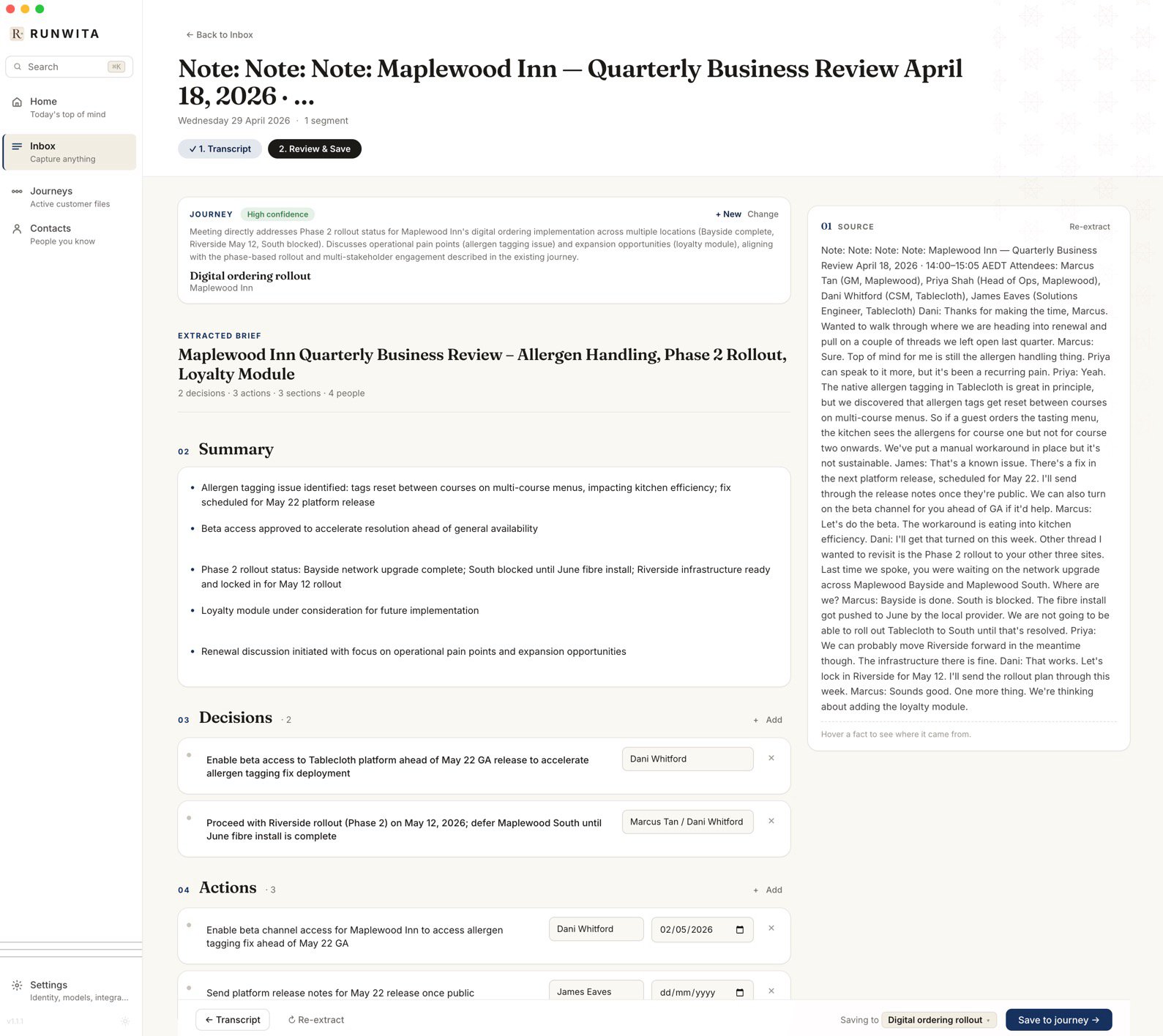
4
Confirm or rename, then save
Edit the customer and use case if the AI’s guess is off. Click Save. The journey appears in the Journeys list with this engagement already on its timeline.
What the journey gives you
A new journey is mostly a container, but it unlocks four things as engagements stack up:- A landing page for the journey itself, with the customer name, use case, and (eventually) a summary written by the AI.
- Topic tracking, threads of discussion that span multiple engagements, with their own status (open, blocked, decided, resolved). See Topics.
- Decisions and actions, every decision and follow-up across every engagement on the journey, in one timeline.
- People, the stakeholders who keep showing up. Runwita pulls them out of attendees and gives you a relationship map per journey.
A naming tip
When you confirm or rename a new journey, spend ten seconds on the use case field. It becomes part of the journey’s identity for the AI matcher. Vague labels like “Engagement” or “Working sessions” make future matching harder. Specific labels like “Phase 2 rollout” or “Renewal and expansion conversations” give the matcher something concrete to work with when the next engagement arrives.What’s next
Capture your first engagement
The full Inbox to journey loop, end to end.